 nmemmert
d860df7de6
nmemmert
d860df7de6
- Removed unnecessary dependencies (fs, path - built-in modules)
- Organized debug files into /debug folder
- Reduced excessive console logging for cleaner output
- Fixed README formatting issues
- Added comprehensive .gitignore
- Removed redundant backup files (game.js.new)
- Fixed duplicate code patterns in analytics
- Created CLEANUP_SUMMARY.md documentation
- Regenerated clean package-lock.json

No breaking changes - all functionality preserved
📝 Modern Spelling & Typing Practice App
A comprehensive educational application featuring spelling practice, typing exercises, and Bible verse typing with modern UI design. Built with Node.js, Express, and optimized for Docker deployment.
⚙️ Features Overview
🎓 Student Features
- Interactive spelling practice with multiple word lists
- Typing exercises for skill development
- Bible verse typing practice
- Gamification with points, badges, and challenges
- Spaced repetition learning system
- Progress tracking and analytics
- Multiple input methods (keyboard, handwriting on tablets)
👨💼 Admin Panel Features
- User management and administration
- Word list creation and editing
- Progress monitoring and reporting
- Analytics dashboard with detailed insights
- System configuration options
🔧 Configuration & Security
The application includes comprehensive security features and environment variable configuration options for deployment flexibility.
🔍 Troubleshooting
If you encounter issues with the app, please refer to the DEBUG.md file for common problems and solutions.
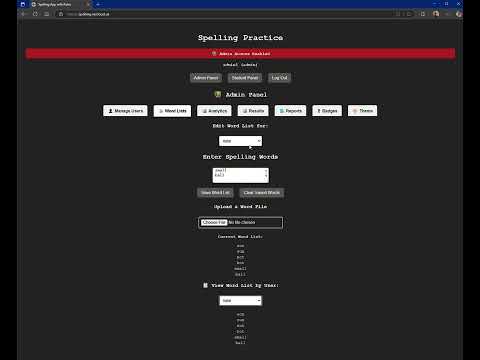
Watch the Demo Video
🚀 Installation Options
Option 1: Docker (Recommended)
Quick Start with Docker Compose
git clone https://github.com/nmemmert/spelling.git
cd spelling
docker-compose up -d
Using Pre-built Container
# Pull and run the latest container
docker run -d \
  --name spelling-app \
  -p 3000:3000 \
  -v ./data:/app/data \
  --restart unless-stopped \
  --health-cmd "wget -q -O - http://localhost:3000/health || exit 1" \
  --health-interval 30s \
  --health-retries 3 \
  ghcr.io/nmemmert/spelling:latest
Advanced Docker Compose
version: "3.9"
services:
  spelling-app:
    image: ghcr.io/nmemmert/spelling:latest
    container_name: spelling-app
    ports:
      - "3000:3000"
    volumes:
      - ./data:/app/data
    environment:
      - NODE_ENV=production
      # Optional environment variables:
      # - PORT=3000
      # - HOST=0.0.0.0
    restart: unless-stopped
    healthcheck:
      test: ["CMD", "node", "-e", "require('http').get('http://localhost:3000/health', res => res.statusCode === 200 ? process.exit(0) : process.exit(1))"]
      interval: 30s
      timeout: 10s
      retries: 3
      start_period: 10s
Building Your Own Docker Image
# Clone the repository
git clone https://github.com/nmemmert/spelling.git
cd spelling

# Build the Docker image
docker build -t spelling:local .

# Run your local image
docker run -d --name spelling-app -p 3000:3000 -v ./data:/app/data spelling:local
Option 2: CasaOS Installation
Method 1: One-Click Install (Recommended)
- Open CasaOS Dashboard in your web browser
- Navigate to App Store → Custom Install
- Paste this complete Docker Compose configuration:
name: spelling-practice-app
services:
  spelling-app:
    image: ghcr.io/nmemmert/spelling:latest
    container_name: spelling-practice
    ports:
      - "3000:3000"
    volumes:
      - /DATA/AppData/spelling:/app/data
    restart: unless-stopped
    environment:
      - NODE_ENV=production
    labels:
      - "casaos.name=Spelling Practice"
      - "casaos.icon=📝"
      - "casaos.category=Education"
      - "casaos.description=Modern spelling and typing practice application"

x-casaos:
  author: NMemmert
  category: Education
  description:
    en_us: "A comprehensive educational application featuring spelling practice, typing exercises, and Bible verse typing with modern UI design."
  developer: "NMemmert"
  icon: "https://hotemoji.com/images/dl/7/memo-emoji-by-google.png"
  screenshot_link: ""
  tagline:
    en_us: "Modern Spelling & Typing Practice"
  thumbnail: ""
  title:
    en_us: "Spelling Practice App"
  tips: {}
  port_map: "3000"
- Click Install and wait for deployment to complete
- Access the app via CasaOS Dashboard or directly at
http://your-casaos-ip:3000
💡 Tip: The app will automatically appear in your CasaOS dashboard with the 📝 icon after installation
Method 2: Manual CasaOS Installation
-
Access CasaOS Terminal:
- Open CasaOS Dashboard
- Go to Terminal or SSH into your CasaOS system
-
Create application directory:
mkdir -p /DATA/AppData/spelling cd /DATA/AppData/spelling -
Create docker-compose.yml file:
nano docker-compose.yml -
Add this configuration and save:
version: "3.9" services: spelling-app: image: ghcr.io/nmemmert/spelling:latest container_name: spelling-practice ports: - "3000:3000" volumes: - /DATA/AppData/spelling:/app/data restart: unless-stopped environment: - NODE_ENV=production
5. **Deploy the application:**
```bash
docker-compose up -d
-
Verify deployment:
docker ps | grep spelling-practice -
Add to CasaOS Dashboard (Optional):
- Go to CasaOS Settings → Custom Apps
- Click Add Custom App
- Name: "Spelling Practice"
- URL:
http://localhost:3000 - Icon: 📝 (or upload custom icon)
- Category: Education
CasaOS-Specific Notes:
- Data Location: All user data is stored in
/DATA/AppData/spelling/ - Automatic Restart: Container will restart automatically with CasaOS
- Port Access: App will be accessible on port 3000
- Updates: Use CasaOS container management to update the image
- Backups: Data directory can be backed up through CasaOS file manager
Troubleshooting CasaOS Installation:
# Check if container is running
docker ps

# View container logs
docker logs spelling-practice

# Restart container if needed
docker restart spelling-practice

# Check port availability
netstat -tlnp | grep :3000
Option 3: Manual Installation
# Clone repository
git clone https://github.com/nmemmert/spelling.git
cd spelling

# Install dependencies
npm install

# Start application
npm start
🌐 Access & Default Credentials
After installation, access the application at:
- Local: http://localhost:3000
- CasaOS: http://your-casaos-ip:3000
Default Login Credentials
| Username | Password | Role | Description |
|---|---|---|---|
| admin1 | password | Admin | Full access to admin panel |
| student1 | 123456 | Student | Access to practice activities |
🔐 Important: Change default passwords immediately after first login via Admin Panel → Password Management
⚙️ Features Overview
� Student Activities
📝 Spelling Practice
- Interactive word-by-word spelling challenges
- Real-time feedback with visual indicators
- Customizable word lists per student
- Progress tracking and accuracy scoring
- Retry system for missed words
⌨️ Typing Practice
- Speed and accuracy typing exercises
- WPM (Words Per Minute) calculation
- Error highlighting and correction
- Progressive difficulty levels
- Performance analytics
📖 Bible Typing (ESV)
- 15 popular Bible verses for typing practice
- Verse-by-verse comparison and accuracy analysis
- Word-level error detection and highlighting
- Spiritual growth through Scripture memorization
- Progress tracking for Bible study
🛠️ Student Features
- Theme Selection: Choose from multiple UI themes
- Progress Dashboard: View personal statistics and achievements
- Badge System: Earn badges for milestones and consistent practice
- Responsive Design: Optimized for desktop, tablet, and mobile
- Clean Interface: Modern, distraction-free learning environment
👨� Admin Panel Features
📊 User Management
- Add, edit, and remove student accounts
- Role-based access control (Admin/Student)
- Password management and reset capabilities
- User activity monitoring
📝 Content Management
- Word List Editor: Create and customize spelling lists per student
- Bulk Import: Upload word lists from text/CSV files
- Category Organization: Organize words by topics or difficulty
- Preview Mode: Test activities before assigning to students
📈 Analytics & Reporting
- Performance Analytics: Track student progress and trends
- Detailed Reports: Generate comprehensive progress reports
- Export Options: Download data for external analysis
- Visual Charts: Graphical representation of student performance
🏆 Badge Management
- Achievement System: Configure milestone badges
- Progress Tracking: Monitor student achievements
- Custom Badges: Create custom rewards for specific goals
- Badge Viewer: Visual display of all earned achievements
⚙️ System Administration
- Password Management: Change admin and student passwords
- Security Controls: Manage access permissions
- Data Backup: Export/import user data and settings
- System Monitoring: View application health and usage
� Configuration
Environment Variables
# Optional environment variables
NODE_ENV=production          # Set to production for deployment
PORT=3000                   # Application port (default: 3000)
Data Persistence
The application stores data in JSON files:
data/users.json- User accounts and authenticationdata/wordlists.json- Custom word lists per studentdata/results.json- Student progress and resultsdata/badges.json- Achievement and badge data
Volume Mapping
For Docker installations, map the data directory:
-v /host/data/path:/app/data
�️ Security Features
- Password Hashing: SHA-256 encryption for all passwords
- Role-Based Access: Separate admin and student interfaces
- Session Management: Secure login/logout functionality
- Input Validation: Protection against common security vulnerabilities
- Data Isolation: Per-user data segregation
🔄 Updates & Maintenance
Updating the Docker Container
Using Docker Compose (Recommended)
# Pull latest image and restart
docker-compose pull
docker-compose down
docker-compose up -d
Using Docker CLI
# Pull latest image
docker pull ghcr.io/nmemmert/spelling:latest

# Stop and remove the old container
docker stop spelling-app
docker rm spelling-app

# Run the new container with the same settings
docker run -d \
  --name spelling-app \
  -p 3000:3000 \
  -v ./data:/app/data \
  --restart unless-stopped \
  ghcr.io/nmemmert/spelling:latest
Updating to a Specific Version
# Edit your docker-compose.yml file and change:
# image: ghcr.io/nmemmert/spelling:latest
# to:
# image: ghcr.io/nmemmert/spelling:1.1.0

# Then restart:
docker-compose down && docker-compose up -d
Docker Image (GitHub Container Registry)
The application is available as a Docker image on GitHub Container Registry (GHCR). You can use it with:
Pull the Image
# Pull the latest version
docker pull ghcr.io/nmemmert/spelling:latest

# Or pull a specific version
docker pull ghcr.io/nmemmert/spelling:1.1.0
Run the Container
# Basic run command
docker run -d -p 3000:3000 -v ./data:/app/data ghcr.io/nmemmert/spelling:latest

# Advanced run command with all options
docker run -d \
  --name spelling-app \
  -p 3000:3000 \
  -v ./data:/app/data \
  --restart unless-stopped \
  --health-cmd "wget -q -O - http://localhost:3000/health || exit 1" \
  --health-interval 30s \
  --health-retries 3 \
  ghcr.io/nmemmert/spelling:latest
Container Details
- Base Image: Node 18 Alpine (minimal footprint)
- Container Size: ~293MB (optimized multi-stage build)
- Exposed Port: 3000
- Volume Mount: /app/data (for persistent data storage)
- Health Check: Enabled (checks application availability every 30s)
- Security: Non-root user, minimal dependencies, security scanning
The image is publicly available at: https://github.com/nmemmert/spelling/pkgs/container/spelling
Backup Data
# Backup user data
docker cp spelling-app:/app/data ./backup-$(date +%Y%m%d)
Logs & Troubleshooting
# View application logs
docker logs spelling-app

# Follow live logs
docker logs -f spelling-app
🤝 Support & Contributing
- Issues: Report bugs and feature requests
- Documentation: Comprehensive setup guides
- Community: Educational technology discussions
Technical Specifications
- Backend: Node.js 18+ with Express.js
- Frontend: Vanilla JavaScript with modern CSS
- Storage: JSON-based file system
- Container: Multi-stage Docker build (293MB)
- Security: SHA-256 password hashing, role-based access
📄 License
This project is designed for educational use and community deployment.
Built with ❤️ for educators and students everywhere